Setup guide

Rust Accounts NFA

Activate in the Telegram bot after purchase — not on this site.

Rust Accounts NFA
Telegram bot

@nfa_accs_bot

Activation is only in the Telegram bot.

Open Telegram bot
1

Activate in Telegram

  1. 1

    After payment, open the Telegram bot @nfa_accs_bot.

  2. 2

    Type /start → Activate key → download the loader

  3. 3

    Enjoy the account!

Back to guides Buy this product

Setup guide

Ketamine External

Hypervisor-based external. Set up BIOS and Crosshair X, then inject twice.

Ketamine External
  • Secure Boot OFF
  • CPU Virtualization (Intel VT-x / AMD-V) ON
  • Hyper-V ON
  • Crosshair X Installed and running
1

Crosshair X overlay setup

  1. 1

    Install Crosshair X from the download above and launch it.

  2. 2

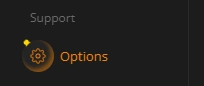
    In the left sidebar, under Support, open Options.

  3. 3

    Find “Limit Crosshair Size” and switch the toggle to OFF.

  4. 4

    Keep Crosshair X running in the background — always start it before the loader.

Crosshair X sidebar with the Options button under Support
Sidebar → Support → Options
Crosshair X settings row for Limit Crosshair Size switched off
“Limit Crosshair Size” — set to OFF
2

Installation

  1. 1

    Run the Loader as Administrator.

  2. 2

    Log in or create an account.

  3. 3

    Click Inject.

  4. 4

    Restart your PC.

  5. 5

    Launch the Loader as Administrator again.

  6. 6

    Click Inject once more.

  7. 7

    Run the game.

  8. 8

    Press INSERT to open the menu — enjoy Ketamine External.

The first injection installs the Hypervisor and requires a restart. Reloading the Hypervisor also requires a restart.

Before opening a ticket, verify: Secure Boot is OFF, Virtualization is ON, Hyper-V is enabled, Crosshair X is running with “Limit Crosshair Size” OFF.

3

Before you launch

Secure Boot Disabled in BIOS
Intel VT-x / AMD-V Enabled
Hyper-V Enabled
Crosshair X Installed and running
Limit Crosshair Size Turned OFF
Loader Started as Administrator
PC Restarted after the first injection
Back to guides Buy this product

Setup guide

Evidence Internal

USB-only internal — launch & injection steps.

Evidence Internal
  • Windows Defender OFF
  • Loader USB flash drive only
  • Game window mode Fullscreen Windowed
1

How to run the cheat

  1. 1

    Launch the game, set window mode to “Fullscreen Windowed” in game settings, then close the game.

  2. 2

    Download the loader from the link below using the key you received after payment and save it to your USB flash drive (not to your PC).

  3. 3

    Run the loader from the USB drive as administrator. In the loader window, select your game, click it, then click “Run”.

  4. 4

    Wait for the loader to close. On success the loader shows a checkmark and closes — then IMMEDIATELY launch the game.

  5. 5

    After the game fully loads to the main menu, press F2 to complete injection, INSERT to open the menu, and F6 to fully unload the cheat.

  6. 6

    Once injected, remove the USB flash drive from your PC.

Press INSERT to open the menu — enjoy Evidence Internal.

2

Before you launch

Windows Defender Turned OFF
Loader USB flash drive only
Game window mode Fullscreen Windowed
Loader Started as Administrator
After loader closes Launch the game immediately
Hotkeys F2 inject · INSERT menu · F6 unload
After inject Remove the USB drive
Back to guides Buy this product

Setup guide

MRPH External

PC preparation and loader injection.

MRPH External
  • Windows Defender OFF
  • Antivirus Uninstalled
  • FaceIt / Vanguard Uninstalled
  • TPM 2.0 OFF
  • Secure Boot OFF
1

PC Preparation — Disable Security Services

  1. 1

    Disable Windows Defender — download Defender Control v2.1, run as administrator and click Disable. The button should turn red.

  2. 2

    Uninstall antivirus software (Kaspersky, Avast, Avira, ESET, etc.) using the vendor’s official uninstall utilities.

  3. 3

    Uninstall anti-cheats (FaceIt, Riot Vanguard and similar) using Revo Uninstaller for complete removal.

  4. 4

    Clear the Temp folder.

  5. 5

    Restart your computer after completing all actions.

  6. 6

    Disable TPM 2.0 in BIOS and Secure Boot.

2

Launch Instructions

  1. 1

    Open Discord → Settings → Game Overlay → Enable Overlay → disable Legacy Overlay.

  2. 2

    Settings → Advanced → Hardware Acceleration → Enabled.

  3. 3

    Download the loader and run it as administrator.

  4. 4

    Register a new account, or log in if you already have one, then add your license key.

  5. 5

    Select your game and click “Run” / Start.

  6. 6

    Wait for the loader to close — on success you’ll see a ✅ checkmark message.

  7. 7

    A reboot prompt appears — click “Yes”.

  8. 8

    After restart: launch the loader again as admin → select game → “Run”.

  9. 9

    Wait for the loader to close (✅), then IMMEDIATELY launch the game.

  10. 10

    Wait for the game to fully load to the main menu.

3

Before you launch

Windows Defender Disabled (red)
TPM 2.0 / Secure Boot Disabled in BIOS
Discord Overlay Enabled, Legacy OFF
Loader Started as Administrator
Spoofer Spoof first, then inject
After second Run Launch the game immediately
Back to guides Buy this product

Setup guide

Morphine

PC preparation and loader injection.

Morphine
  • Windows Defender OFF
  • Antivirus Uninstalled
  • FaceIt / Vanguard Uninstalled
  • TPM 2.0 OFF
  • Secure Boot OFF
1

PC Preparation — Disable Security Services

  1. 1

    Disable Windows Defender — download Defender Control v2.1, run as administrator and click Disable. The button should turn red.

  2. 2

    Uninstall antivirus software (Kaspersky, Avast, Avira, ESET, etc.) using the vendor’s official uninstall utilities.

  3. 3

    Uninstall anti-cheats (FaceIt, Riot Vanguard and similar) using Revo Uninstaller for complete removal.

  4. 4

    Clear the Temp folder.

  5. 5

    Restart your computer after completing all actions.

  6. 6

    Disable TPM 2.0 in BIOS and Secure Boot.

2

Launch Instructions

  1. 1

    Open Discord → Settings → Game Overlay → Enable Overlay → disable Legacy Overlay.

  2. 2

    Settings → Advanced → Hardware Acceleration → Enabled.

  3. 3

    Download the loader and run it as administrator.

  4. 4

    Register a new account, or log in if you already have one, then add your license key.

  5. 5

    Select your game and click “Run” / Start.

  6. 6

    Wait for the loader to close — on success you’ll see a ✅ checkmark message.

  7. 7

    A reboot prompt appears — click “Yes”.

  8. 8

    After restart: launch the loader again as admin → select game → “Run”.

  9. 9

    Wait for the loader to close (✅), then IMMEDIATELY launch the game.

  10. 10

    Wait for the game to fully load to the main menu.

3

Before you launch

Windows Defender Disabled (red)
TPM 2.0 / Secure Boot Disabled in BIOS
Discord Overlay Enabled, Legacy OFF
Loader Started as Administrator
Spoofer Spoof first, then inject
After second Run Launch the game immediately
Back to guides Buy this product