Setup guide

Rust Accounts NFA

Activate in the Telegram bot after purchase — not on this site.

Rust Accounts NFA
Telegram bot

@nfa_accs_bot

Activation is only in the Telegram bot.

Open Telegram bot
1

Activate in Telegram

  1. 1

    After payment, open the Telegram bot @nfa_accs_bot.

  2. 2

    Type /start → Activate key → download the loader

  3. 3

    Enjoy the account!

Back to guides Buy this product

Setup guide

Ketamine External

Hypervisor-based external. Set up BIOS and Crosshair X, then inject twice.

Ketamine External
  • Secure Boot OFF
  • CPU Virtualization (Intel VT-x / AMD-V) ON
  • Hyper-V ON
  • Crosshair X Installed and running
1

Crosshair X overlay setup

  1. 1

    Install Crosshair X from the download above and launch it.

  2. 2

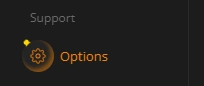
    In the left sidebar, under Support, open Options.

  3. 3

    Find “Limit Crosshair Size” and switch the toggle to OFF.

  4. 4

    Keep Crosshair X running in the background — always start it before the loader.

Crosshair X sidebar with the Options button under Support
Sidebar → Support → Options
Crosshair X settings row for Limit Crosshair Size switched off
“Limit Crosshair Size” — set to OFF
2

Installation

  1. 1

    Run the Loader as Administrator.

  2. 2

    Log in or create an account.

  3. 3

    Click Inject.

  4. 4

    Restart your PC.

  5. 5

    Launch the Loader as Administrator again.

  6. 6

    Click Inject once more.

  7. 7

    Run the game.

  8. 8

    Press INSERT to open the menu — enjoy Ketamine External.

The first injection installs the Hypervisor and requires a restart. Reloading the Hypervisor also requires a restart.

Before opening a ticket, verify: Secure Boot is OFF, Virtualization is ON, Hyper-V is enabled, Crosshair X is running with “Limit Crosshair Size” OFF.

3

Before you launch

Secure Boot Disabled in BIOS
Intel VT-x / AMD-V Enabled
Hyper-V Enabled
Crosshair X Installed and running
Limit Crosshair Size Turned OFF
Loader Started as Administrator
PC Restarted after the first injection
Back to guides Buy this product

Setup guide

Null Internal

Turn off Windows Defender, install the runtimes, then inject with the game closed.

Null Internal
  • Windows Defender OFF
  • FaceIt AC Not installed
  • Riot Vanguard Not installed
  • Visual C++ / DirectX / .NET 4.8 Installed
  • The game Fully closed
1

Pre-setup

  1. 1

    Disable Windows Defender.

  2. 2

    Uninstall FaceIt AC and Riot Vanguard if they are installed.

  3. 3

    Install the required runtimes from the links above.

  4. 4

    Download the Null loader.

2

How to run

  1. 1

    Open the loader.

  2. 2

    Make sure that the game is closed.

  3. 3

    Press Inject and wait.

  4. 4

    The product will start automatically — wait for the menu to appear and the corresponding beep sound.

  5. 5

    Open and close the menu with the Insert key. Insert works only after the product has loaded.

3

If the loader fails

Start failed (code: 39) Install Rust and Steam
Start failed (code: 41) Restart the PC and try again
Start failed (code: 42) Open Rust via Steam to the main menu, close it, then launch the loader again
Back to guides Buy this product

Setup guide

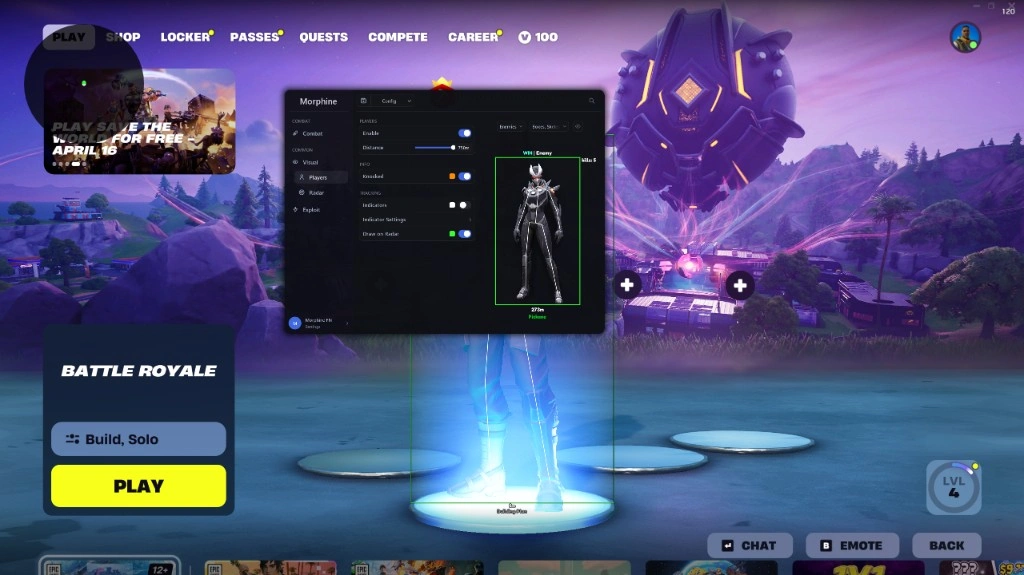
MRPH External

Pre-setup, required runtimes, Morphine loader inject and menu hotkeys.

MRPH External
  • Windows Defender OFF
  • FaceIt AC Uninstalled
  • Riot Vanguard Uninstalled
  • Visual C++ / DirectX / .NET 4.8 Installed
  • The game Fully closed
  • License key Ready
1

Pre-setup

  1. 1

    Disable Windows Defender.

  2. 2

    Uninstall FaceIt AC and Riot Vanguard if they are installed.

  3. 3

    Install the required runtimes from the links above.

  4. 4

    Download the Morphine loader.

2

How to run

  1. 1

    Open the loader.

  2. 2

    Paste your license key.

  3. 3

    Make sure that the game is closed.

  4. 4

    Inject and wait.

  5. 5

    The product will start automatically — wait for the menu to appear and the corresponding beep sound.

  6. 6

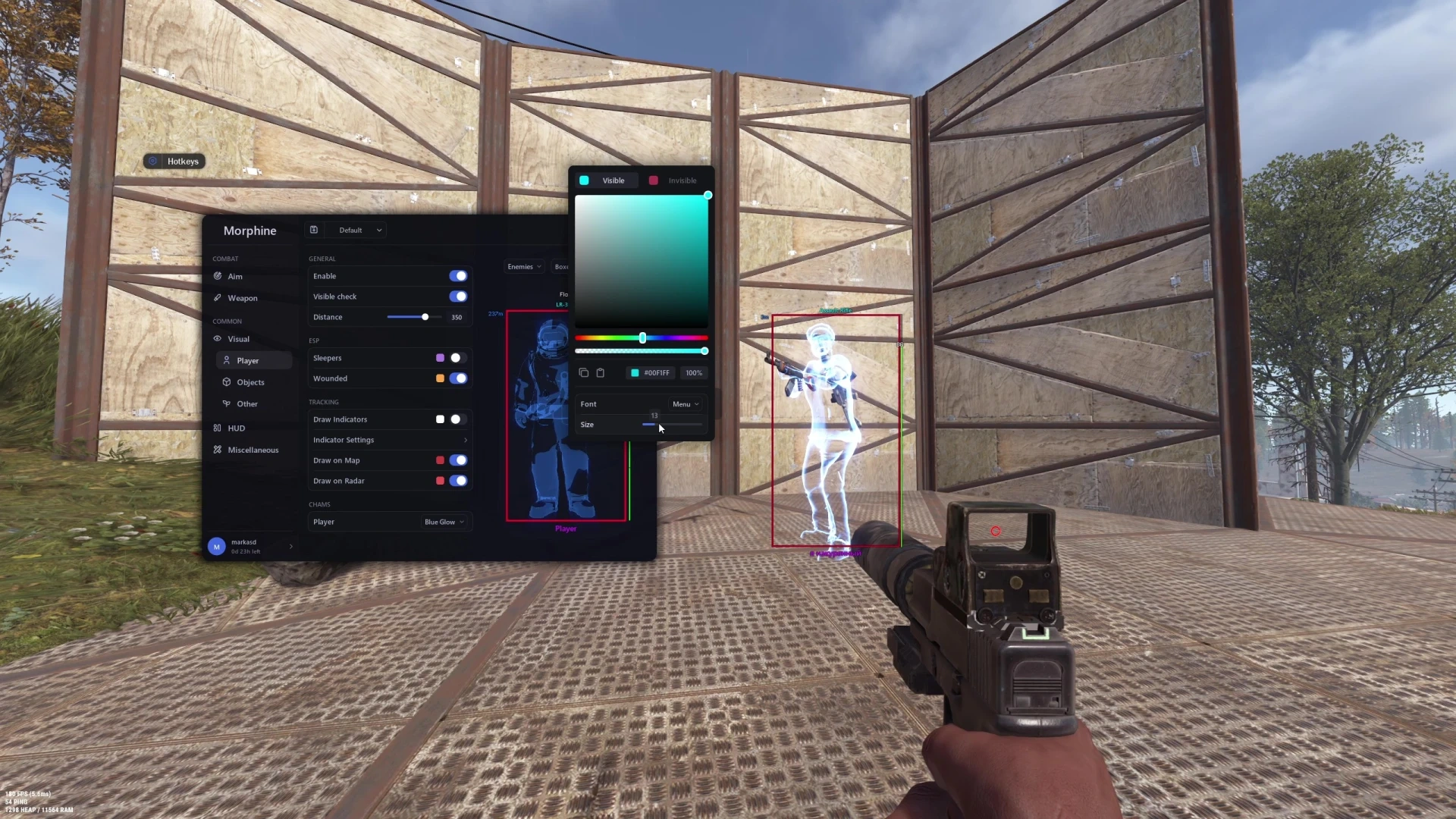
    Open / close the menu after it loads using Delete or Insert.

3

Hotkeys

  • Insert Open / close the menu
  • Delete Open / close the menu
Back to guides Buy this product

Setup guide

MRPH Internal

PC preparation and loader injection.

MRPH Internal
  • Windows Defender OFF
  • Antivirus Uninstalled
  • FaceIt / Vanguard Uninstalled
  • TPM 2.0 OFF
  • Secure Boot OFF
1

PC Preparation — Disable Security Services

  1. 1

    Disable Windows Defender — download Defender Control v2.1, run as administrator and click Disable. The button should turn red.

  2. 2

    Uninstall antivirus software (Kaspersky, Avast, Avira, ESET, etc.) using the vendor’s official uninstall utilities.

  3. 3

    Uninstall anti-cheats (FaceIt, Riot Vanguard and similar) using Revo Uninstaller for complete removal.

  4. 4

    Clear the Temp folder.

  5. 5

    Restart your computer after completing all actions.

  6. 6

    Disable TPM 2.0 in BIOS and Secure Boot.

2

Launch Instructions

  1. 1

    Open Discord → Settings → Game Overlay → Enable Overlay → disable Legacy Overlay.

  2. 2

    Settings → Advanced → Hardware Acceleration → Enabled.

  3. 3

    Download the loader and run it as administrator.

  4. 4

    Register a new account, or log in if you already have one, then add your license key.

  5. 5

    Select your game and click “Run” / Start.

  6. 6

    Wait for the loader to close — on success you’ll see a ✅ checkmark message.

  7. 7

    A reboot prompt appears — click “Yes”.

  8. 8

    After restart: launch the loader again as admin → select game → “Run”.

  9. 9

    Wait for the loader to close (✅), then IMMEDIATELY launch the game.

  10. 10

    Wait for the game to fully load to the main menu.

3

Before you launch

Windows Defender Disabled (red)
TPM 2.0 / Secure Boot Disabled in BIOS
Discord Overlay Enabled, Legacy OFF
Loader Started as Administrator
Spoofer Spoof first, then inject
After second Run Launch the game immediately
Back to guides Buy this product

Setup guide

Evidence Internal

USB-only internal — launch & injection steps.

Evidence Internal
  • Windows Defender OFF
  • Loader USB flash drive only
  • Game window mode Fullscreen Windowed
1

How to run the cheat

  1. 1

    Launch the game, set window mode to “Fullscreen Windowed” in game settings, then close the game.

  2. 2

    Download the loader from the link below using the key you received after payment and save it to your USB flash drive (not to your PC).

  3. 3

    Run the loader from the USB drive as administrator. In the loader window, select your game, click it, then click “Run”.

  4. 4

    Wait for the loader to close. On success the loader shows a checkmark and closes — then IMMEDIATELY launch the game.

  5. 5

    After the game fully loads to the main menu, press F2 to complete injection, INSERT to open the menu, and F6 to fully unload the cheat.

  6. 6

    Once injected, remove the USB flash drive from your PC.

Press INSERT to open the menu — enjoy Evidence Internal.

2

Before you launch

Windows Defender Turned OFF
Loader USB flash drive only
Game window mode Fullscreen Windowed
Loader Started as Administrator
After loader closes Launch the game immediately
Hotkeys F2 inject · INSERT menu · F6 unload
After inject Remove the USB drive
Back to guides Buy this product

Setup guide

Static External

PC preparation and loader injection.

Static External
  • Windows Defender OFF
  • Antivirus Uninstalled
  • FaceIt / Vanguard Uninstalled
  • TPM 2.0 OFF
  • Secure Boot OFF
1

PC Preparation — Disable Security Services

  1. 1

    Disable Windows Defender — download Defender Control v2.1, run as administrator and click Disable. The button should turn red.

  2. 2

    Uninstall antivirus software (Kaspersky, Avast, Avira, ESET, etc.) using the vendor’s official uninstall utilities.

  3. 3

    Uninstall anti-cheats (FaceIt, Riot Vanguard and similar) using Revo Uninstaller for complete removal.

  4. 4

    Clear the Temp folder.

  5. 5

    Restart your computer after completing all actions.

  6. 6

    Disable TPM 2.0 in BIOS and Secure Boot.

2

Launch Instructions

  1. 1

    Open Discord → Settings → Game Overlay → Enable Overlay → disable Legacy Overlay.

  2. 2

    Settings → Advanced → Hardware Acceleration → Enabled.

  3. 3

    Download the loader and run it as administrator.

  4. 4

    Register a new account, or log in if you already have one, then add your license key.

  5. 5

    Select your game and click “Run” / Start.

  6. 6

    Wait for the loader to close — on success you’ll see a ✅ checkmark message.

  7. 7

    A reboot prompt appears — click “Yes”.

  8. 8

    After restart: launch the loader again as admin → select game → “Run”.

  9. 9

    Wait for the loader to close (✅), then IMMEDIATELY launch the game.

  10. 10

    Wait for the game to fully load to the main menu.

3

Before you launch

Windows Defender Disabled (red)
TPM 2.0 / Secure Boot Disabled in BIOS
Discord Overlay Enabled, Legacy OFF
Loader Started as Administrator
Spoofer Spoof first, then inject
After second Run Launch the game immediately
Back to guides Buy this product

Setup guide

Morphine

PC preparation and loader injection.

Morphine
  • Windows Defender OFF
  • Antivirus Uninstalled
  • FaceIt / Vanguard Uninstalled
  • TPM 2.0 OFF
  • Secure Boot OFF
1

PC Preparation — Disable Security Services

  1. 1

    Disable Windows Defender — download Defender Control v2.1, run as administrator and click Disable. The button should turn red.

  2. 2

    Uninstall antivirus software (Kaspersky, Avast, Avira, ESET, etc.) using the vendor’s official uninstall utilities.

  3. 3

    Uninstall anti-cheats (FaceIt, Riot Vanguard and similar) using Revo Uninstaller for complete removal.

  4. 4

    Clear the Temp folder.

  5. 5

    Restart your computer after completing all actions.

  6. 6

    Disable TPM 2.0 in BIOS and Secure Boot.

2

Launch Instructions

  1. 1

    Open Discord → Settings → Game Overlay → Enable Overlay → disable Legacy Overlay.

  2. 2

    Settings → Advanced → Hardware Acceleration → Enabled.

  3. 3

    Download the loader and run it as administrator.

  4. 4

    Register a new account, or log in if you already have one, then add your license key.

  5. 5

    Select your game and click “Run” / Start.

  6. 6

    Wait for the loader to close — on success you’ll see a ✅ checkmark message.

  7. 7

    A reboot prompt appears — click “Yes”.

  8. 8

    After restart: launch the loader again as admin → select game → “Run”.

  9. 9

    Wait for the loader to close (✅), then IMMEDIATELY launch the game.

  10. 10

    Wait for the game to fully load to the main menu.

3

Before you launch

Windows Defender Disabled (red)
TPM 2.0 / Secure Boot Disabled in BIOS
Discord Overlay Enabled, Legacy OFF
Loader Started as Administrator
Spoofer Spoof first, then inject
After second Run Launch the game immediately
Back to guides Buy this product

Setup guide

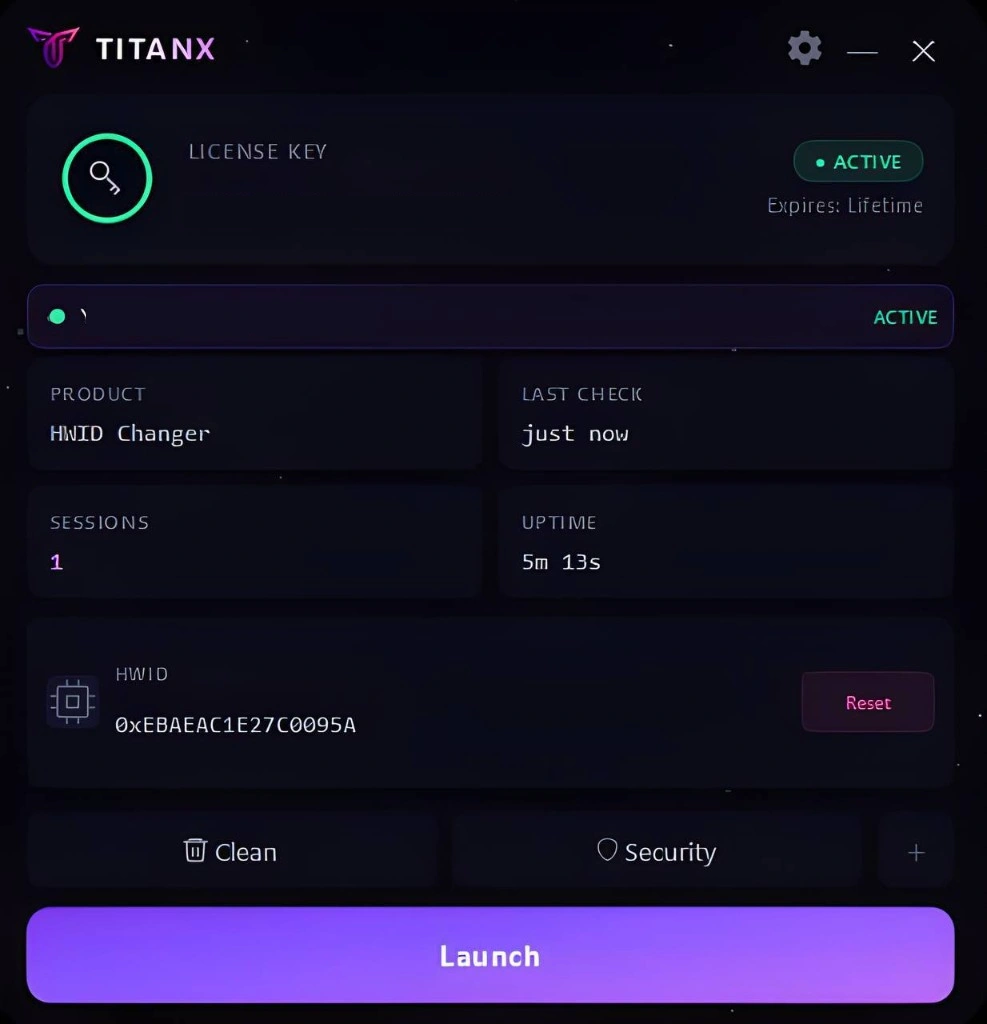
TitanX(EAC/BE/ACE/RICOCHET)

Turn security features off, then launch the loader.

TitanX(EAC/BE/ACE/RICOCHET)
1

Requirements

  1. 1

    Windows Defender Real-time ProtectionOFF

  2. 2

    Windows FirewallOFF

  3. 3

    SmartScreenOFF

  4. 4

    Memory Integrity (Core Isolation)OFF

  5. 5

    Vulnerable Driver BlocklistOFF

Use the checker to verify all items are properly disabled.

2

Option A — Standard

  1. 1

    Launch the loader and enter your key.

  2. 2

    If you had a previous session or need a fresh start: restart your router to get a new IP (dynamic IP required), click Clean in the loader to wipe the previous session, then click Reload PC and wait for the system to restart.

  3. 3

    If any security feature was not disabled manually, click Security Off, then Reload PC.

  4. 4

    Launch HWID Identity Changer and wait for the driver to fully load.

  5. 5

    Close the application. Done.

3

Option B — With Third-Party Software

If you are using third-party software, launch it first, then repeat Option A from the beginning.

4

Run the Checker Before Launch

All red items in the checker must be fixed before proceeding.

Reboot your PC and launch the loader right after the system starts.

Back to guides Buy this product